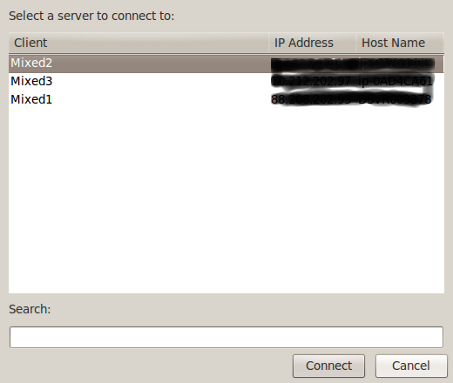
Select an agent and run it on a server

I did not write this (I hardly write any lotusScript any more), it was written by Antony Cooper, but he has kindly given permission to post it here as it is soo useful, a very nice little “Run from Menu” agent/function to enable you to run other agents directly on the server, making them much much faster, we use it for running migration and administration updates that need to change a lot of existing data, hope its as useful to you as it is to me.

%REM
    Agent Select and Run agent on server
    Created by Antony Cooper
    Description: Simple agent to build a list of agent in a database and then run the selected agent on the server
%END REM
Option Public
Option Declare
Sub Initialize()
    Dim ws As New NotesUIWorkspace
    Dim session As New NotesSession
    Dim db As NotesDatabase
    Dim nid As String, nextid As String, agName As String, msg As string
    Dim i As Integer, flag As Integer
    Dim doc As NotesDocument
    Dim arrName As Variant
    Set db = session.CurrentDatabase
    REM Create note collection
    Dim nc As NotesNoteCollection
    Set nc = db.CreateNoteCollection(False)
    Call nc.SelectAllCodeElements(false)
    nc.SelectAgents = true
    Call nc.BuildCollection
    arrName = ""
    'Build array of agent names
    nid = nc.GetFirstNoteId
    For i = 1 To nc.Count
        'get the next note ID before removing any notes
        nextid = nc.GetNextNoteId(nid)
        Set doc = db.GetDocumentByID(nid)
        If IsArray(arrName) Then
            arrName = ArrayAppend(arrName, doc.Getfirstitem("$title").Values )
        Else
            arrName = doc.Getfirstitem("$title").Values
        End If
        nid = nextid
    Next
    arrName = QuickSort(arrName, LBound(arrName), UBound(arrName))
    agName = ws.Prompt(PROMPT_OKCANCELCOMBO, "List of Database Agents", "Select the agent to run on this databases server", "", arrName)
    If agName = "" Then 
        MsgBox "No agent has been selected, action cancelled.", 64, "User information"
        Exit sub
    End If
    If agName <> "" Then
        msg = "The agent you selected is '" & agName & ''
Do you want to run this agent on the server now?'
        flag = MsgBox (msg, 32 + 4, "User information")
        If flag <> 6 Then Exit Sub
    End If
    Dim agent As NotesAgent
    Set db = session.CurrentDatabase
    Set agent = db.GetAgent( agName )
    If agent.RunOnServer = 0 Then
        MessageBox "Agent ran", 32, "Success"
    Else
        MessageBox "Agent did not run", 64, "Failure"
    End If
End Sub
' Function Quick sort.
' Sorts array
'=============================================================
Public Function QuickSort( anArray As Variant, indexLo As Long, indexHi As Long) As Variant
Dim lo As Long
Dim hi As Long
Dim midValue As String
Dim tmpValue As String
lo = indexLo
hi = indexHi
If ( indexHi > indexLo) Then
'get the middle element
    midValue = anArray( (indexLo + indexHi) /2)
    While ( lo <= hi )
    'find first element greater than middle
        While (lo < indexHi) And (anArray(lo) < midValue )
            lo = lo+1
        Wend
        'find first element smaller than middle
        While ( hi > indexLo ) And ( anArray(hi) > midValue )
            hi = hi - 1
        Wend
        'if the indexes have not crossed, swap
        If ( lo <= hi ) Then
            tmpValue = anArray(lo)
            anArray(lo) = anArray(hi)
            anArray(hi) = tmpValue
            lo = lo+1
            hi = hi -1
        End If
    Wend
    ' If the right index has not reached the left side of array, sort it again
    If( indexLo < hi ) Then
        Call QuickSort( anArray, indexLo, hi )
    End If
    'If the left index has not reached the right side of array, sort it again
    If( lo < indexHi ) Then
        Call QuickSort( anArray, lo, indexHi )
    End If
End If
QuickSort = anArray
End Function

Old Comments
————
##### Hora_ce(10/06/2011 10:22:24 GDT)
I’ve created something similar to this one… but in addition, the user can choose where to run the agent – on local or on server.
##### Mark Myers(09/06/2011 21:04:27 GDT)
you are correct, the time out is not applied for this method (one of its very reasons for creation as we have a very strict admin, who wont let agents run more that 10 mins which is often too short for a migration agent)
##### Sean Cull(09/06/2011 21:01:48 GDT)
just watch out, I am not sure that the server time outs protecting against infinite loops etc are enacted via this method – I once had one go for “some time” with no apparent way to stop it.
##### Mark Myers(10/06/2011 22:10:29 GDT)
cool, I take it the run local option is for scheduled agents rather than selecting them manually from the action menu? where is it posted?

More Amazon Web Services lessons

At LDC towers we use AWS a great deal and have a habit of trying every variation of their services as we can, on the basis of “better we learn lessons on our servers, rather than clients”, one of our dev servers was built on windows 2008 64bit, and unfortunately it turns out that you can only have small and medium instances on 32bit instances not on 64bit (this applies to the Linux instances as well),

32bit

64bit

This means that unless you are willing to pay about ~$200 per month, stick to 32bit (unless you can live in under 613meg of ram)

Thankfully it was very easy to swap back thanks to the lessons we have already learnt:

  • Use Elastic IP (to have a static IP address that you can simply assign to any instance is worth its weight in gold)
  • Keep all data possible on Persistent volumesSo we could simply stop the instance, create a new one (32bit), reassign our Elastic IP and Persistent Volumes to the new instance, and just install the core programs dependancies (all our data,config and installers are kept on the volumes),

    Total time to swap ~15 mins (10 of this was the windows build)….Sweet

    oh a quick side note, you might suffer some rights issue on reassigned volumes (regarding both the ownership and rights of files), if your a Linux boy this will be no issue as you will long be used to the Chown and Chmod commands, but if your doing this on windows and a complete none admin or GUI person, you might find it a bit frustrating (the Windows GUI tools for rights always seem to throw up spurious errors and run soooo slow), however Windows 2008 finally provides fast command line tools in the shape of

    takeown /f d:directory*.* /d y

    icacls d:directory*.* /grant administrators:F

    hope that helps.

Private GIT server on AWS

Source code control is essential for LDC and something we have to keep up to date on, GIT is currently the ‘IN’ flavor of source control , and while places like GITHUB make it very easy, quite a few of our clients simply wont allow their source code on a none dedicated/personally secured OS instance (also once you start to get in to LDC’s number of current and previous projects/repositories, a dedicated server is cheaper) . so it was time to build a new dedicated GIT server on AWS (using their “Amazon Linux” base build, which is built off CentOS)

NOTE: this is a document in progress
TODO: create a persistent data area and mount point for storing the repositories (in case the instance gets terminated)
TODO: store this back as a AMI in case of loss of instance

1) we build a new instance via the “Launch Instance” wizard at https://console.aws.amazon.com/ec2 using the following options ( I’m only stipulating options that might need changing)

AIM: Quick Start – “Basic 32-bit Amazon Linux AMI”
Instance Type: “micro” (no need for power for this and we want to keep it cheap)
Termination Protection: YES (goodness knows when this is not set as default)
TAG: NAME – “LDC GIT Server”
Key Pair: “LDCdev” ( we already have a key pair for dev work, but you might need to create on, if you do, remember where you put your private key file (*.pem) as you’ll be screwed if you loose it)
Firewall: create a new “security group” containing: SSH, HTTP, HTTPS and TCPIP: 9148

2) Now we have a launched EC2 instance, lets log on via SSH (linux and Mac boys will find this bit easy, windows users, may I recommend PuTTY)

ssh -i LDCdev.pem ec2-user@xxx.xxx.xxx.xxx

you note, you have to provide a user of “ec2-user” rather than “root” as root wont work, and you have to provide the private key file you stipulated when you launched the instance. with the xxx.xxx.xxx.xxx, we use an ip address as we use the elastic IP address function, if you are not using that then you will need to use the public DNS that amazon provides ( select your running instance and on the “description” tab below, you will find it near the bottom, it will look something like “ec2-50-55-94-157.compute-1.amazonaws.com”)

if you get an error on log-on regarding your private key being too open, you have to secure it better at file level on your client machine, in Linux you do it like this

chmod 400 LDCdev.pem

3) now we start to install git, thankfully amazon Linux has a version of git built into our repository, so all you need to do it enter

sudo yum install git

next create the user that will store the repositories

sudo useradd -m -d /home/git -u 1005 git

and set its password

sudo passwd git

4) and a second user so we can create RSA key pair (GIT uses security keys rather than passwords)

sudo useradd -d /home/gitolite-admin gitolite-admin

sudo passwd gitolite-admin

su – gitolite-admin

ssh-keygen

follow the instructions and remember to pick a good password

Copy this key somewhere public on the server so we can get to it later

cp ~/.ssh/id_rsa.pub /tmp/gitlite-admin.pub

exit

5) next install gitolite(which I prefer to gitosis) to handle the repository management, we cant use yum for this as its not in the amazon repositories

git clone git://github.com/sitaramc/gitolite
cd gitolite
src/gl-system-install

now as the git user

su – git
gl-setup /tmp/gitlite-admin.pub

6) Now you will be taken take to the config document in vi, just exit

exit

7) At this point the oddities of git on AWs should be done and we can move over to the formal gitolite documentation at http://sitaramc.github.com/gitolite/doc/2-admin.html

Old Comments
————

##### Mark Myers(30/05/2011 23:27:55 GDT)
i expect we will be using the SSL, as we often provide the client direct access to their source code it will be better, i will keep updating this document to make it a good guide so if you have any updates you want let me know (ill try integrating egit with domino eclipse and see what happens

##### Nathan T. Freeman(30/05/2011 23:09:10 GDT)
Mark, thanks for this. GIT is a killer SCM, and we’ve been working to get an internal implementation running with gitolite as well.

Are you using the simple strategy of creating SSH accounts for each user, or have you tried using gitolite’s more elaborate identity control techniques with SSL?

Also, if you want to integrate git control with Domino projects, you might find this handy: { Link }

Drop Box on Servers

I like Dropbox, just about everyone I know uses it all the time, but one place I think it is under utilised is on the server, by this I don’t mean big corporate infrastructures, I mean cloud based servers or multiple hosted servers, a perfect example was last weeks migration, LDC were moving a box from one hosting provider to another, to transfer the data I merely split rar’ed it up on the current box (giving the rar creation directory as a folder on drop box), and grinned when I saw it appearing on the new server (the speed was comparable to FTP and with far less manual work)

but before that, we have found drop box invaluable on a daily basis for admin work, lets look at a couple of the directories on our Admin Drop Box account

“Source” – This Contains all the current software and patches that we use on our servers, not only does this mean that its very easy to get patches to all servers (download it once on my pc and drop it in), and that you never have to think “where can i get the patch from” when on a server, but if you install dropbox first when you are building a new box, all the files you need are there straight away.

“Restore” – Explains its self, how often have you restored a file and its on your local machine rather than a server or vs versa.

“Docs” – contains all the aide memoire’s that you always seem to need at the worst times when fixing a server, contains text files of ip address, network settings and any other relevant documentation that you MIGHT need, again, easy to keep up to date, just change it once on your local machine.

All data is transferred over SSL so ports are not a problem and the data is as secure as anything can be in our connected world.

why make your life difficult.

Jungle Disk Server Version

During a recent review of LDC’s hardware and systems, its was decided to change backup strategies, as most of us had been using jungleDisk /Amazon S3 for our laptop backups, we decided to give the server version a go.

Well i am very impressed with it, it behaves very much like any enterprise backup solution i have used, you install a bit of agent software on each server then monitor and control the jobs from a separate bit of control software (which is also installed by default on each server). it then backups your choices to your Amazon S3 account (jungle disk them selves do NOT backup your data, although they make the integration to your Amazon S3 account very very easy {as well as giving you about 10 gig of free data per server})

swapping from server to server is easy

and the configuration and job set-up are nearly the same as the standard jungle disk

pricing for the full blow version is $5 per month + what ever S3 storage costs your encure, so very “cloud” (makes a sick noise).

Oh, was immediately asked by Matt white, “does it handle open files?” , the answer would appear to be yes

what is not made so clear is that, if you are backing up a windows machine you need to have the “Windows Volume Shadow Copy” Service running (not an issue with Linux and Mac as they already cope with such things) , the way you can tell if you have missed this step is seeing the following error when tying to back up a locked file

“VSS_E_OBJECT_NOT_FOUND”

but if that is the limit to problems, then I’m more than happy.

Pros
-Cheap
-Easy to use
-Uses Amazon S3 so no more “We cant find the tape”
-You can get to the files directly without the backup software

Cons
-No application specific bolt ons (which might be viewed as a pro)
-Limited granularity of controls
-Obviously heavy on the bandwidth

Domino Appendix
As a largo portion of those who read this blog are IBM Domino users a note on using this on Domino:
Now Domino does not support VSS as far as i know (God knows why not, but i can make a guess) if this IBM note from 2007 is still correct (and judging by this ideaJam.net post it is)

So I’m afraid you are going to have to use the old stand-by’s of ensuring that databases are replicated, and use scripts to flush the cache before backup and/or stop services http,agent manager etc etc, to ensure the databases are handle free. our test restores all worked perfectly (including names.nsf), but as a lot of our stuff in on AWS now we also keep drive snapshots (cant be to careful with client data)

(sigh)