Hi Guys greetings from a sunny but often very wet Austria.
news letter no 60SalesForce for Domino Dogs 2: Scheduled Agents
Welcome to the second part of the Salesforce for Domino Dogs series. This one is a monster, but don’t worry we will be revisiting and clearing up some of the complex parts in other blog posts. What was a simple thing in Domino is quite complex in Salesforce and for a variety of very good reasons. So… scheduled agents.
Scheduled Agents: These little sods are the pain of many a Domino admin’s life. Personally I blame them for the lock-down of many a Domino server from the free-for-all that was so empowering to users, but sometimes there is no other way to get round limits or deal with certain triggered activities.
In Salesforce scheduled processes are a bit more complex than you might be used to, and this is not just a Salesforce thing, but a cloud thing—no cloud provider wants their platform just churning along in the background eating up cycles and I/O time.
So let’s break it down:
- The code that does stuff
- The scheduled task that the code sits in
- The schedule itself
1) The Code
So this CAN just be any bit of Apex you want, but most of the time you will actually end up using batch apex. Batch Apex is a whole set of articles in its own right, but in this case it’s just a way of getting round the Apex limits.
… hmmm that does not help. OK let me explain:
You know how with Domino scheduled agents, they will only run for so long before the agent manager shuts it down? This is to stop you writing rubbish code that screws up the system. Apex has a load of limits just like that, and the one that hits quite often is the limit that you can only send 10 emails using Send() in a given transaction (you can send 1000 bulk email per day). To get round this limit you have to “batch”, or break up your code into chucks. In Domino this would be like saying we want to process a whole view’s-worth of documents, but in chunks of say five documents at a time.
An empty bit of batch apex looks like this:
global class NotifiyAllUsersInAView implements Database.Batchable<sObject> {
    // The start method is called at the beginning of the code and works out which objects this code is goign to run agains.
    // It uses an SOQL query to work this out
    global Database.QueryLocator start(Database.BatchableContext BC){
    }
    // The executeBatch method is called for each chunk of objects returned from the start function.
    global void execute(Database.BatchableContext BC, List<Contact> scope){
    }
    //The finish method is called at the end of a sharing recalculation.
    global void finish(Database.BatchableContext BC){
    }
}
Let’s take it apart. First we will use the “start” function to get the list of objects we want to work through, so we take the empty function:
    // The start method is called at the beginning of the code and works out which objects this code is goign to run agains.
    // It uses an SOQL query to work this out
    global Database.QueryLocator start(Database.BatchableContext BC){
    }
… and add a search to say get all “contacts” in Salesforce. We only need the email address for these contacts1 so we add that as one of the fields which it gives us:
    // The start method is called at the beginning of the code and works out which objects this code is going to run against
    // It uses an SOQL query to work this out
    global Database.QueryLocator start(Database.BatchableContext BC){
        return Database.getQueryLocator([SELECT Id, Email FROM Contact]);
    }
Next we want the empty “execute” function which will do whatever we want with each chunk of objects it is sent:
    // The executeBatch method is called for each chunk of objects returned from the start function
    global void execute(Database.BatchableContext BC, List<Contact> scope){
    }
So in this horrible bit of code, the chunk of objects is passed in a reference called “scope” — we are then just iterating the objects and sending an email for each contact (you can see the email address stipulated in the “start” being passed in using “c.Email”):
    // executeBatch method is called for each chunk of objects returned from the start function
    global void execute(Database.BatchableContext BC, List<Contact> scope){
      for(Contact c : scope){
          Messaging.SingleEmailMessage mail = new Messaging.SingleEmailMessage();
          String[] toAddresses = new String[] {c.Email};
          mail.setToAddresses(toAddresses);
          mail.setSubject('Another Annoying Email');
          mail.setPlainTextBody('Dear XXX, this is another pointless email you will hate me for');
          Messaging.sendEmail(new Messaging.SingleEmailMessage[] { mail });
       }
    }
Finally we need an empty “finish” function which runs when all the batches are done:
    //The finish method is called at the end of a sharing recalculation.
    global void finish(Database.BatchableContext BC){
    }
So let’s send a final email notification to the admins:
    //The finish method is called at the end of a sharing recalculation
    global void finish(Database.BatchableContext BC){
        // Send an email to admin to say the agent is done.
        Messaging.SingleEmailMessage mail = new Messaging.SingleEmailMessage();
        String[] toAddresses = new String[] {emailAddress};
        mail.setToAddresses(toAddresses);
        mail.setSubject('Agent XXX is Done.');
        mail.setPlainTextBody('Agent XXX is Done.');
        Messaging.sendEmail(new Messaging.SingleEmailMessage[] { mail });
    }
Put it all together and you get:
global class NotifiyAllUsersInAView implements Database.Batchable<sObject> {
    // String to hold email address that emails will be sent to.
    // Replace its value with a valid email address.
    static String emailAddress = 'admin@admin.com';
    // The start method is called at the beginning of the code and works out which objects this code is goign to run agains.
    // It uses an SOQL query to work this out
    global Database.QueryLocator start(Database.BatchableContext BC){
        return Database.getQueryLocator([SELECT Id, Email FROM Contact]);
    }
    // The executeBatch method is called for each chunk of objects returned from the start function.
    global void execute(Database.BatchableContext BC, List<Contact> scope){
      for(Contact c : scope){
          Messaging.SingleEmailMessage mail = new Messaging.SingleEmailMessage();
          String[] toAddresses = new String[] {c.Email};
          mail.setToAddresses(toAddresses);
          mail.setSubject('Another Annoying Email');
          mail.setPlainTextBody('Dear XXX, this is another pointless email you will hate me for');
          Messaging.sendEmail(new Messaging.SingleEmailMessage[] { mail });
       }
    }
    //The finish method is called at the end of a sharing recalculation.
    global void finish(Database.BatchableContext BC){
        // Send an email to admin to say the agent is done.
        Messaging.SingleEmailMessage mail = new Messaging.SingleEmailMessage();
        String[] toAddresses = new String[] {emailAddress};
        mail.setToAddresses(toAddresses);
        mail.setSubject('Agent XXX is Done.');
        mail.setPlainTextBody('Agent XXX is Done.');
        Messaging.sendEmail(new Messaging.SingleEmailMessage[] { mail });
    }
}
So now we need to call this code
2) The Scheduled “Agent”
The code we have just written won’t run in a schedule on its own, we need to wrap it up in a bit of code that can run on a schedule and decide how big the chunks will be. In this case they can’t be more than 10 as we will hit the Apex limits for sending emails. An empty schedule wrapper looks like this (I have called mine ‘Scheduled_Agent’ but you can call it anything):
global class Scheduled_Agent implements Schedulable{
    global void execute (SchedulableContext SC){
    }
}
Now let’s create a new instance of the batchable code we created in section 1, tell it we want it to run in batches of 5 records or objects, and tell it to execute.
global class Scheduled_Agent implements Schedulable{
    global void execute (SchedulableContext SC){
      Integer batchSize = 5;
      NotifiyAllUsersInAView batch = new  NotifiyAllUsersInAView();
      database.executebatch(batch , batchSize);
    }
}
Code bit all done!
3) The Schedule
Now it comes time to actually schedule the code to run at a certain time, you can set this up via the user interface by going into Setup, searching for “Apex Classes”, and selecting the result:
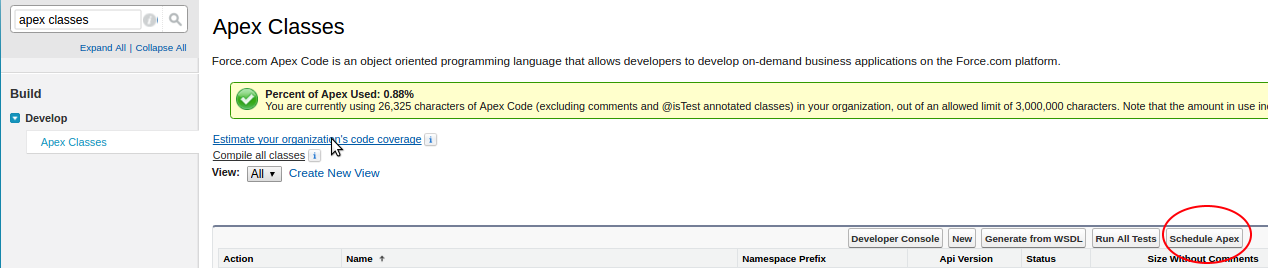
Select “Scheduled Apex”
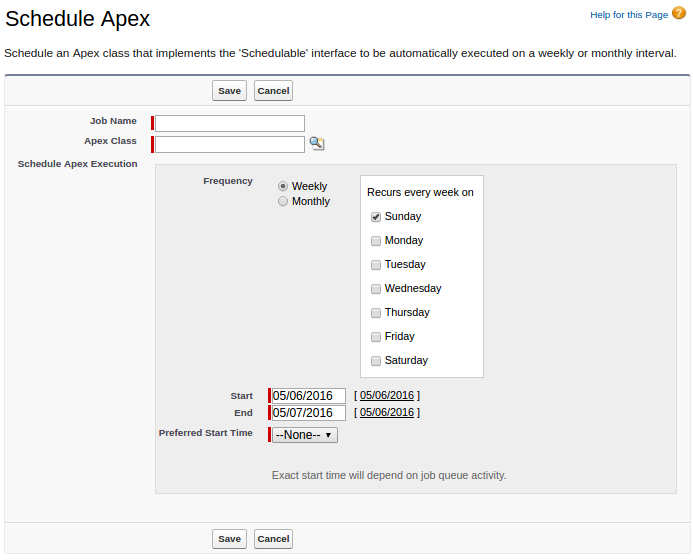
As you can see, the options are limited to, at most, a daily run—you can’t specify it to be any more frequent. However, we need to run to more often than that2.
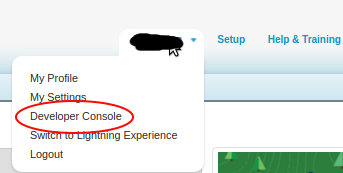
First open up your developer console, by selecting your name on the top right and picking it from the drop-down.
Now open up the “Execute Anonymous Window” from the debug menu.

You can now run Apex code manually, and as such you can schedule jobs with a load more precision using a Cron String. In this case we want to run the agent every 10 mins within the hour, so we create a new instance of our “Scheduled_Agent” scheduled class and schedule it appropriately:

Click “Execute” and you can see the jobs have been scheduled. It should be noted that you can only have 100 of these in your org and this uses up 6 of them, so some planning would be good.
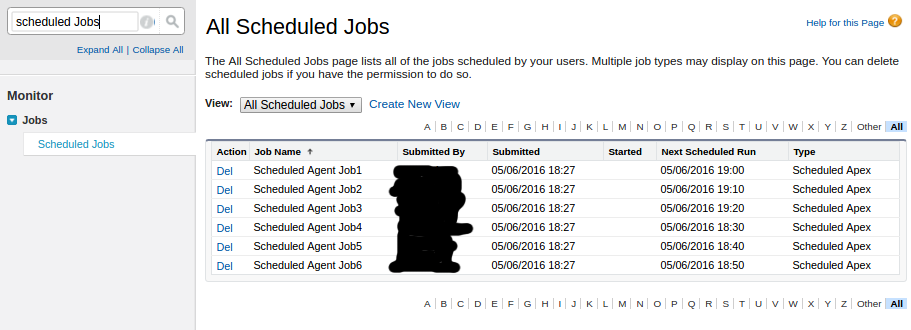
And there you go, scheduled agents. Let the legacy of horror continue!
A.B.D. News letter 2016 No 59
Hi guys greetings from sunny Astria 28c today forecast for 14c tomorrow its just like Scotland
news letter no 59SalesForce for Domino Dogs 1: Profile Documents
Following on from the Initial Session “Salesforce for Domino Dogs” that Paul Mooney and I did at Engage and a modified version of which that has just been presented at #DNUG I figured that a series of dev articles on how you would do a job in Salesforce that you had always taken from granted in Domino might be a good idea, because:
- It would give an honest way of comparing features between the 2 systems shorn of the hype/marketing/platform bashing, that frankly gets on my thungers from both sides.
- It will hopefully help people trying to integrate the 2 systems.
- As IBM are one of the largest Salesforce consultancies in the world, it is something a champion should do.
- The Salesforce community is very short on this kind of thing given its size in comparison to traditional IBM communities and with people like René in it I want to try and help improve it.
These articles are not in any order and are not meant to represent any form of training guide.
So lets get started, first up: Profile Documents!!
In Domino you tend to store config settings for an app in a profile document1 for all your one off settings
To get the same features in Salesforce you use a ‘custom setting’ which does exactly the same job and has one huge advantage over using a normal Salesforce custom object that could do the same job.
(It should be noted that Domino profiles are nothing like Salesforce profiles)
To create a custom setting, go into Setup and search for “Custom Settings”

Click on the “New” button, and fill in some sane details, for normal configs i.e. stuff you would use system wide, select a setting type of “List”, if you want to use them for things like default values in fields and formulas then select “Hierarchy”
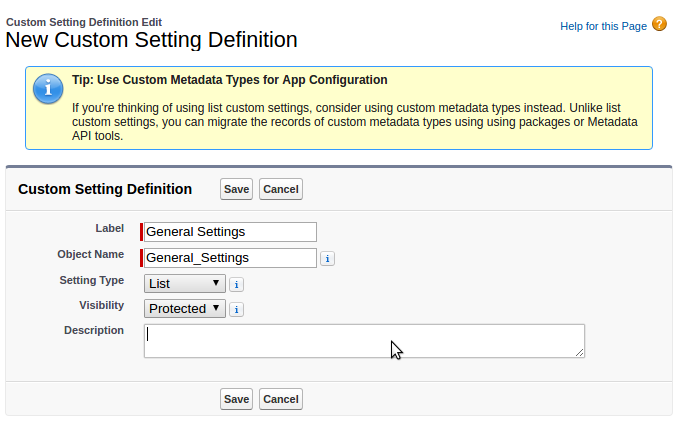
Click ‘Save’ and you now have a custom setting object, you can add one or more fields to it just as you would any other object in Salesforce
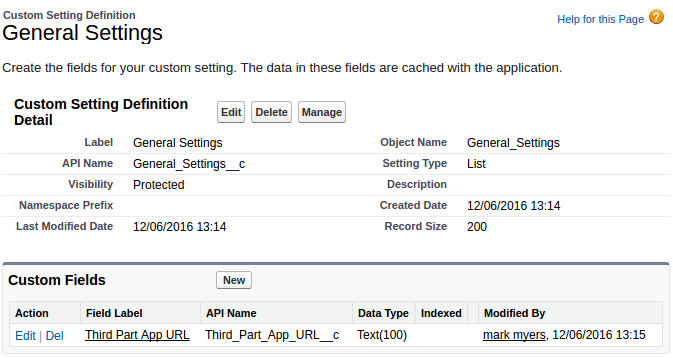
Added all the fields you want?, lets put in some data. if you go back to the list of custom settings you will see that you now have a “manage” link, click this

Then click “New”

Fill in the fields just like you would on a normal form, if this is a Setting there is only going to be one of, I tend to give it the same title as the name of the object to keep things simple, in this case “General Settings”, if you are going to use it multiple times than give it a name that will make sense in the context of your code

All done. now we can use the setting in our code and see the reason why we would use them vs. a normal custom object.
As you can see from the code below, you don’t have to use a Select statement, which means getting the settings wont count against your apex limits, HORRAY!!!
You just have to create a new instance of the setting object then you can just “getInstance” with the Name of the object you created to get the document back.
General_Settings__c generalSettings = General_Settings__c.getInstance('General Settings');
String thirdPartAppURL = '';
if (null != generalSettings) {
     thirdPartAppURL = generalSettings.Third_Part_App_URL__c;
}
Simples..
- Well you are supposed to, but you never do thanks to the evil caching and the fact the are are a sod to just copy around, so you end up with a config document and a view you store them in.[↩]
A.B.D. News letter 2016 No 58
Hi guys we are now in Lienz Austria with great wi fi
news letter no 58