Editing an email that is generated via an Saleforce email template BEFORE it is sent is something that I have had a few clients grumble over, the feature is baked into the Quote object which makes sense, but you try telling clients they cant have it for Order objects….
So this is a basic solution that gets round this problem and is the basic set-up for expanding it to solve all the issues, in this case I am solving the most common issue I have come access, in that you are generating a order recept or delivery note pdf using the ‘renderAs=”PDF”‘ option in an email template and want to send the email with a custom message to one or more people that you decide at the time of sending.
To do that we are going to create a new visual force page that resembles a normal email and use it to fill in the details before we generate the email template

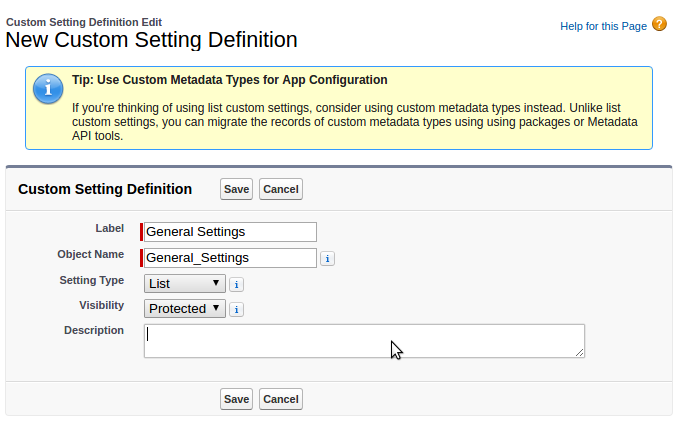
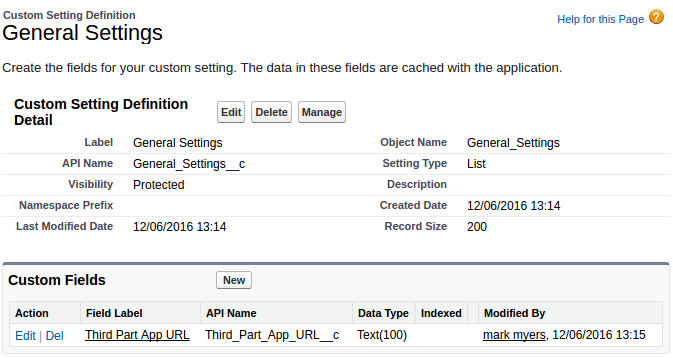
1) Create a new email custom object
This is just a basic object with the fields we need for the email, and a lookup field to the parent Order

Note: For brevity I’m leaving out the creation of the layout for the custom object and the adding of the related list to the Order Layout
2) Add some extra Fields to your Order object
These are the temporary fields that we are using to actually send the template email, resist the urge to set the To/CC/BCC as email fields as that will stop you having multiple recipients.

Obviously these fields have to be editable to all but not part of the order layouts so they don’t show up.
3) Create a new “Template Editor” Visualforce Page
This page is as simple or complex as you can want it, my one here takes email address separated by a comma but yours can be a really posh contact lookup
<apex:page controller="sendOrderPDFEmail">
    <apex:messages />
    <apex:pageBlock title="Email for Order: {!order.Name}">
    <p>Fill out the fields below and click "Send email"</p>
    <apex:form ><br/><br/>
        <apex:outputLabel value="Template To Attach" for="chooseTemplate"/>: <br/>
        <apex:selectList id="chooseTemplate" value="{!template}" size="1">
            <apex:selectOption itemValue="Template1" itemLabel="Template1"/>
            <apex:selectOption itemValue="Template2" itemLabel="Template2"/>
            <apex:selectOption itemValue="Template3" itemLabel="Template3"/>
        </apex:selectList>
        <br/><br/>
        <apex:outputLabel value="To" for="To"/>: <br/>
        <apex:inputText value="{!to}" id="To" maxlength="255" style="width: 300px;"/>
        <br/><br/>
        <apex:outputLabel value="CC" for="CC"/>: <br/>
        <apex:inputText value="{!cc}" id="CC" maxlength="255" style="width: 300px;"/>
        <br/><br/>
        <apex:outputLabel value="BCC" for="BCC"/>: <br/>
        <apex:inputText value="{!bcc}" id="BCC" maxlength="255" style="width: 300px;"/>
        <br/><br/>
        <apex:outputLabel value="Subject" for="Subject"/>: <br/>
        <apex:inputText value="{!subject}" id="Subject" maxlength="255" style="width: 500px;"/>
        <br/><br/>
        <apex:outputLabel value="Body" for="Body"/>: <br/>
        <apex:inputTextarea value="{!body}" id="Body" richText="true" rows="20"/>
        <br/><br/>
        <apex:commandButton value="Send Email" action="{!send}"/>
    </apex:form>
    </apex:pageBlock>
</apex:page>
4) Create the “Send” code (don’t forget to create your test code).
I have just put comments on the code, as its not complex and follows the flow chart at the top of the blog.
public class sendOrderPDFEmail {
    public String template { get; set; }
    public String cc { get; set; }
    public String bcc { get; set; }
    public String to { get; set; }
    public String subject { get; set; }
    public String body { get; set; }
    public Account contactLookup { get; set; }
    private final Order order;
    public sendOrderPDFEmail() {
        //Get the Id of the order that we are working on
        template = '';
        String OrderId = ApexPages.currentPage().getParameters().get('id');
        order = [SELECT Name, ID
        FROM Order
        WHERE Id = :OrderId];
    }
    public Order getOrder() {
        return order;
    }
    public PageReference send() {
    if( !String.isBlank(cc)) {
        cc = cc.trim();
    }
    if( !String.isBlank(bcc)) {
        bcc = bcc.trim();
    }
    if( !String.isBlank(to)) {
        to = to.trim();
    }
    //Mail email Order object
    orderemail__c con = new orderemail__c(
        Address_CC__c=cc,
        Address_BCC__c=bcc,
        Address_to__c=to,
        Body__c=body,
        parent_order__c=order.id,
        Subject__c=subject,
        Template__c=template
        );
    insert con;
    //Store the temp values in the Order
    order.le_Address_BCC__c=bcc;
    order.le_Address_CC__c=cc;
    order.le_Address_to__c=to;
    order.le_Body__c=body;
    order.le_Subject__c=subject;
    order.le_Template__c=template;
    update order;
    if ( String.isBlank(to) ) {
         to = 'test@test.com';
     }
     // Construct the list of emails we want to send
     List<Messaging.SingleEmailMessage> lstMsgs = new List<Messaging.SingleEmailMessage>();
     Messaging.SingleEmailMessage msg = new Messaging.SingleEmailMessage();
     //set the email tempalte from the name chossen on the email form
     EmailTemplate[] emailTemplate = [select id from EmailTemplate where Name=:template];
     if (emailTemplate.size() > 0) {
          msg.setTemplateId( emailTemplate[0].id );
     } else {
         msg.setPlainTextBody('No Template Provided');
     }
     // Trim and convert the comma delimted string to a suitable recipiant list for the email.
     String[] trimmedtoarray;
     if (!String.isBlank(to)) {
        String[] toarray = to.split(',');
        trimmedtoarray = new String[toarray.size()];
        Integer k = 0;
        for (String singlEmail: toarray) {
           trimmedtoarray[k++] = singlEmail.trim();
        }
        msg.setToAddresses(trimmedtoarray);
     }
     if (!String.isBlank(cc)) {
         String[] ccarray = cc.split(',');
         String[] trimmedccarray = new String[ccarray.size()];
         Integer i = 0;
         for (String singlEmail: ccarray) {
             trimmedccarray[i++] = singlEmail.trim();
         }
         msg.setCcAddresses(trimmedccarray);
     }
     if (!String.isBlank(bcc)) {
         String[] bccarray = bcc.split(',');
         String[] trimmedbccarray = new String[bccarray.size()];
         Integer j = 0;
         for (String singlEmail: bccarray) {
            trimmedbccarray[j++] = singlEmail.trim();
         }
         msg.setBccAddresses(trimmedbccarray);
     }
     // Templates do need an object (Contact that he pdf will be used to generate against) for things like first name etc
     // So we are going to pick the first contact on the to list.
     Contact c = [select id, Email from Contact where email = :trimmedtoarray[0] limit 1];
     msg.setWhatId( order.id );
     msg.setTargetObjectId(c.id);
     lstMsgs.add(msg);
     //Send the email
     Messaging.sendEmail(lstMsgs);
    // clear out the temp fields we used to generate the email.
    order.le_Address_CC__c='';
    order.le_Address_BCC__c='';
    order.le_Address_to__c='';
    order.le_Body__c='';
    order.le_Subject__c='';
    order.le_Template__c='';
    update order;
        //Send the user back to the Order
        PageReference backToQuotePage = new PageReference('/' + order.id);
        backToQuotePage.setRedirect(true);
        return backToQuotePage;
    }
}
##### 5) Create a button in the Order object to launch your “Email” screen

##### 6) Update your Email template
Now update your email templates to use the “le_Body__c” and “le_Subject__c” fields for their email contents,
<messaging:emailTemplate recipientType="Contact"
    relatedToType="Order"
    subject="{!RelatedTo.le_Subject__c}"
    replyTo="orders@XXXX.com">
    <messaging:htmlEmailBody >
        <html>
        <c:EmailStyle />
        <body>
            <apex:outputText value="{!RelatedTo.le_Body__c}" escape="false"/>
        </body>
        </html>
    </messaging:htmlEmailBody>
    <messaging:plainTextEmailBody >
    <apex:outputText value="{!RelatedTo.le_Body__c}" escape="false"/>
    </messaging:plainTextEmailBody>
<messaging:attachment renderAs="PDF" filename="GeneratedEmail.pdf">
      <style>
      @page {
      size: A4 landscape;
      margin-top: 1.0cm;
      margin-left: 1.0cm;
      margin-right: 1.0cm;
      margin-bottom: 7cm;
        @bottom-center {
          content: element(footer);
        }
      }
      </style>
        <html>
        <c:EmailStyle />
        <body>
        //POSH PDF STUFF HERE
        </body>
        </html>
</messaging:attachment>
</messaging:emailTemplate>
Note:
So PDF’s generated by Email templates in Salesforce are not saved and you cant get hold of them, so we are not saving them in the custom email object, if you do need that, then you will need to convert your email templates to visual force pages then render as PDFs and save them in the custom objects.